Chapter 1
What Is the AI Client?
Provider-agnostic API, Connectors, why it matters
WordPress 7.0 ships with a new global function called wp_ai_client_prompt(). That one function is the entry point for every AI feature you’ll build for the rest of this series, so it’s worth understanding exactly what it does before we write any real code.
What “provider-agnostic” actually means
Your plugin doesn’t talk to OpenAI, or Anthropic, or Google directly. It talks to wp_ai_client_prompt(), describes what it wants (a text summary, a JSON response, an image), and WordPress figures out which configured AI model actually handles the request.
This matters more than it sounds like on first read. Say you build a plugin that generates product descriptions using AI. One customer runs it with Claude connected, another with GPT, a third switches providers halfway through the year because of pricing. With the old approach (installing a specific SDK, hardcoding calls to a specific API), that’s three code paths, or a plugin that only works with one provider and says so in the readme. With the AI Client, it’s the same code for all three. Your plugin describes what it needs. WordPress handles where that request actually goes.
Where the provider gets configured
The site owner (not you, not your plugin) sets this up once under Settings > Connectors in wp-admin. That’s where they connect their AI provider and enter their API key.
Three official provider plugins exist so far:
- AI Provider for Anthropic
- AI Provider for Google
- AI Provider for OpenAI
A site needs at least one of these active for any AI feature to work at all, yours included. That’s worth checking before you assume wp_ai_client_prompt() will do anything (we’ll cover how to check this properly, without guessing, in Chapter 15 on feature detection).
Here’s what that screen actually looks like on a fresh WordPress 7.0 install:
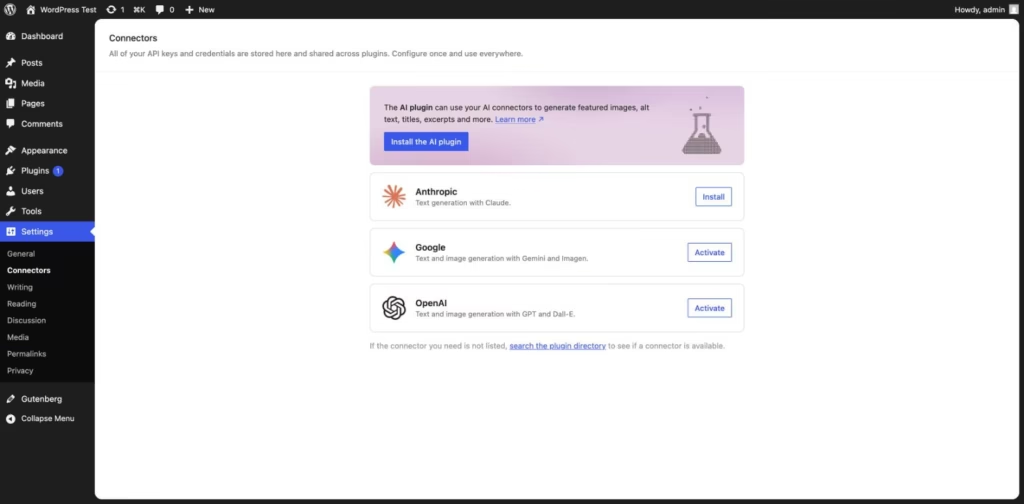
Settings > Connectors, listing the three official AI provider plugins. Google and OpenAI show “Activate” here because their plugin files were already present on this test install, just not turned on yet. Anthropic shows “Install” since it hasn’t been added at all. On your own site, don’t be surprised if all three say “Install,” that’s the normal starting point.
You never touch the API key
This is the part that saves the most work. Credential management is handled entirely by WordPress’s Connectors API. Your plugin code never stores, reads, or even sees the API key. You just call wp_ai_client_prompt() and let core route the request to whatever’s configured.
If you’ve built AI features before 7.0, this is probably the biggest relief: no more asking users to paste an API key into your own plugin’s settings page, no more worrying about how to store it securely. That responsibility now belongs to core.
The entry point, before we use it
Here’s the line of code every example from here on starts with:
$builder = wp_ai_client_prompt();This returns a WP_AI_Client_Prompt_Builder object. Nothing has been sent to an AI model yet at this point, we’ve just created a builder we can configure. Think of it the same way you’d think of $wpdb->prepare() or a WP_Query object: you build it up first, then you run it. In the next chapter, we’ll chain a prompt onto this builder and actually generate something.
Try it yourself
Before Chapter 2, go check Settings > Connectors on a WordPress 7.0 site. Confirm at least one AI provider is connected. If none are, install “AI Provider for Anthropic,” “AI Provider for Google,” or “AI Provider for OpenAI” from the plugin directory, connect an API key, and you’re ready for the next chapter. It doesn’t matter which one you pick, the code in this series works the same regardless.
One practical note on cost, since “connect an API key” glosses over a real question: does this cost money? Google’s Gemini currently offers a free API key you can use for experimentation (at least at the time of writing this, so don’t hold me to it a year from now). If you’d rather use OpenAI or Anthropic, you don’t need much, a few dollars of prepaid API credit is more than enough to work through every example in this course.