
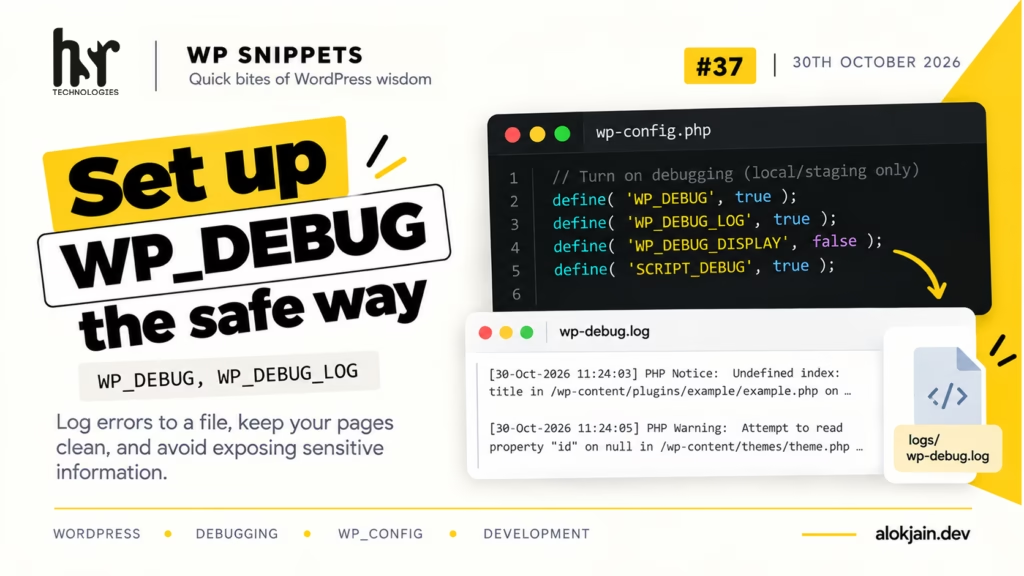
Turning on WP_DEBUG and nothing else prints every warning and notice straight onto the page. On a local site that’s annoying. On staging, where a client might be clicking around, it’s embarrassing, and the messages can include file paths you’d rather not show anyone.
The better setup sends everything to a log file and keeps the page clean.
1. Add the constants to wp-config.php
On your local or staging site, add these above the “That’s all, stop editing!” line:
define( 'WP_DEBUG', true );
define( 'WP_DEBUG_LOG', true );
define( 'WP_DEBUG_DISPLAY', false );
define( 'SCRIPT_DEBUG', true );
WP_DEBUG turns on error reporting. WP_DEBUG_LOG writes those errors to a file, wp-content/debug.log by default. WP_DEBUG_DISPLAY set to false stops them from appearing on the page.
SCRIPT_DEBUG is the one people forget. It makes WordPress load the unminified versions of core’s CSS and JavaScript, so errors in the browser console point to readable line numbers instead of line 1 of a minified file.
On production, all of these stay off (or out of the file entirely).
2. Move the log out of wp-content
Since WordPress 5.1, WP_DEBUG_LOG can also take a file path instead of true:
define( 'WP_DEBUG_LOG', dirname( __DIR__ ) . '/logs/wp-debug.log' );This puts the log in a logs folder one level above your WordPress root. Create the folder first and make sure PHP can write to it, or nothing gets logged and you won’t get an error telling you why.
I used __DIR__ here and not ABSPATH because ABSPATH isn’t defined yet at that point in wp-config.php (it’s set further down, below the “stop editing” line).
Warning: the default wp-content/debug.log is often readable by anyone.
Unless your server blocks it, visiting yoursite.com/wp-content/debug.log in a browser shows the whole file. That can include file paths, plugin names and versions, and sometimes data from failed queries.
Moving the log above the web root removes the problem completely, which is why I’d do it even on staging.
3. Toggle it with WP-CLI
You don’t need to open wp-config.php every time:
wp config set WP_DEBUG true --raw
wp config set WP_DEBUG_LOG true --raw
wp config set WP_DEBUG_DISPLAY false --raw
The --raw flag writes the value as a PHP true or false. Without it, WP-CLI writes the string 'true' in quotes.
To switch debugging off again when you’re done:
wp config set WP_DEBUG false --raw4. Watch the log while you work
Open a terminal and leave this running:
tail -f ../logs/wp-debug.logNew errors appear the moment they happen, so you see them while clicking through the site instead of hunting for them later.
You can write to the same log yourself when debugging your own code:
error_log( print_r( $my_variable, true ) );The true makes print_r() return the output as a string instead of printing it, so arrays and objects land in the log in a readable format.
That’s all for this one.
Try it: set this up on your local site, leave tail -f running, and click through your homepage, a single post and the admin dashboard. Tell me which plugin threw the first notice.